
Sitecore
Sitecore Installations – tips and tricks #3
How many Sitecores have you installed? You’ve probably lost count, right? And you know better than I how automated this process becomes and you practically don’t see what you’ve done, and DONE everything is installed, LET'S INSTALL ALL THE SITECORES ON THIS SERVER!!!!!
If you’ve been following the series of posts Sitecore Installations – Tips and Tricks there’s one thing I keep saying “Not so fast” – for those who don’t remember here #1, and here #2.
At first glance, Sitecore installation seems simple – and it is – however, in proportion to how confident we become in our process, in our knowledge of Sitecore, then BAM – you drop from your chair – a big mistake appears and you feel guilty! Now, imagine yourself in the scenario above under pressure…. Believe me, this is where men and women are separated from boys and girls!
So, I hope you didn’t have a heart attack or panic, just relax! Now, take a slow breath and put your head to thinking and follow my steps!
Here’s our scenario: you just received an email from your manager saying
Hello, I’m happy to announce that we have a new Sitecore project, and for the first time we will take care of the entire installation, from the beginning. This means we will install the server from scratch and install Sitecore in this environment.
You also received a second email with all the information to access remotely, credentials and “your user has administrative privileges on all servers”
Nice! Now, assuming you followed step by step and installed the requirements to run a Sitecore installation.
(Now, you and I will have a brief dialogue)
- YOU: Perfect! Everything installed, I’ll notify my manager and go home. This has been a long week.
- ME: Sorry to be the bad guy, did you verify the Sitecore installation?
- YOU: No, why do you ask? Everything was installed, without errors and I already emailed my boss… – pause – “F***!!! I got an email from my boss saying nothing loads!” What went wrong?!?!?! It was supposed to be a simple and easy process..
- ME: Well, I know this isn’t the best time, but never forget “Not so fast” post #1 of Sitecore Installations – Tips and Tricks.
Ok, we have no option but to check the installation! Let’s go!
Go ahead and access the server, and then try to load the Sitecore page
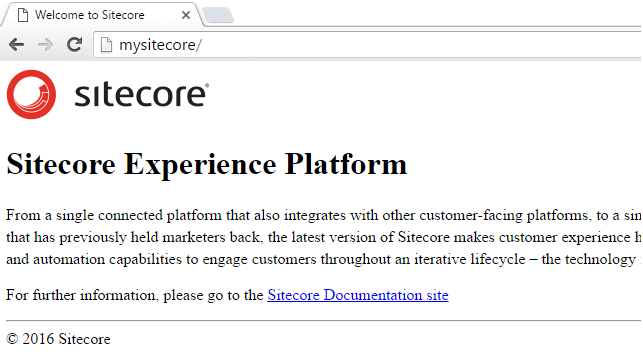
I believe you should remember that this page usually has a much nicer image, styles, and fonts than this. You can check the page /sitecore?
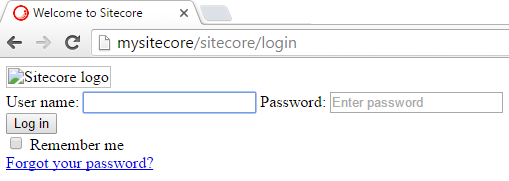
Strange! I’m seeing you’re using Chrome, so press F12 and choose Elements, and look for the broken Sitecore logo.
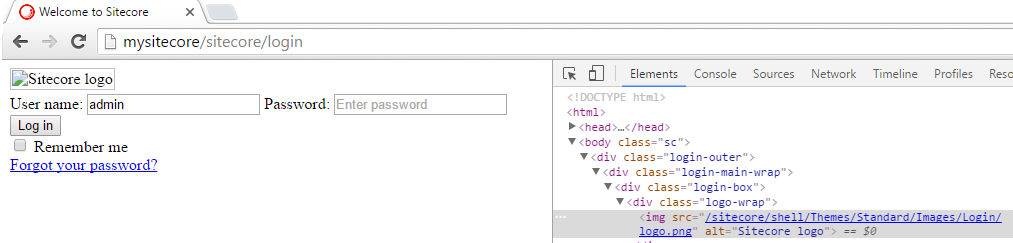
Now that you know where the PNG is, put the full path in the address bar and verify you can load the image: http://mysitecore/sitecore/shell/Themes/Standard/Images/Login/login.png

Hmmm! Well, the good news is that we didn’t get a 404 page denying access, so we confirm it’s not a permission issue.
It seems the static files aren’t being shown! Interesting thinking
Wait! Static contents = Static Contents! That’s it! Hey, why don’t you try to install the component Static Contents inside Common HTTP Features
YOU: Hmm, okay, but how?
ME: Follow my steps
- Open Server Manager, and click Add Roles and Features
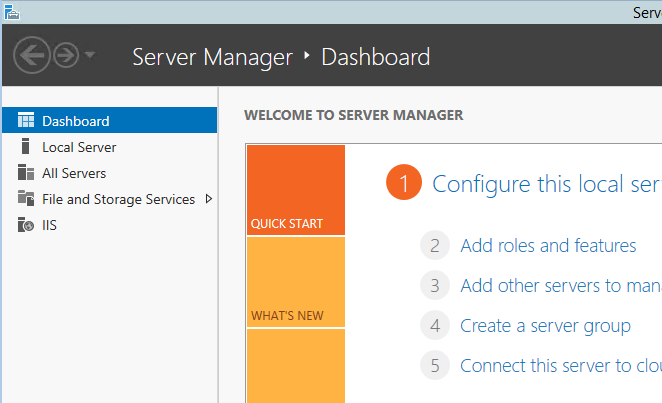
- In the Add Roles and Features window click Next on the Before you begin step
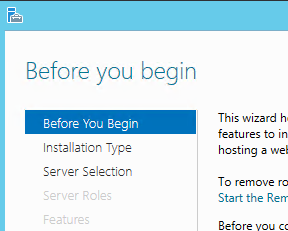
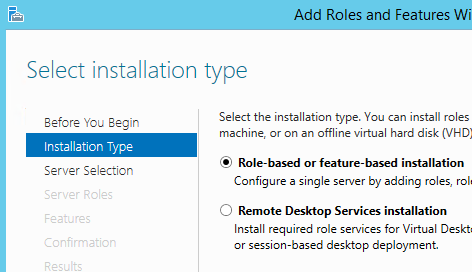
- In the Installation Type step, make sure the option Role-based or Feature-based is selected and click Next
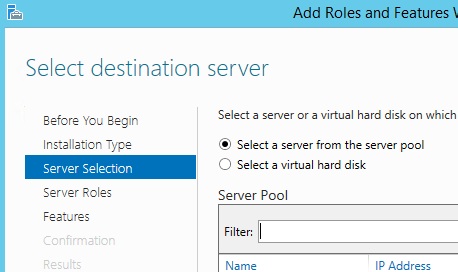
- In the Server Selection step, verify that the correct server is selected and click Next
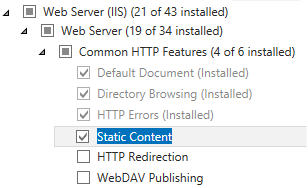
- In the Server Roles steps, look for Web Server (IIS) and navigate to Web Server > Common HTTP Features and find Static Content
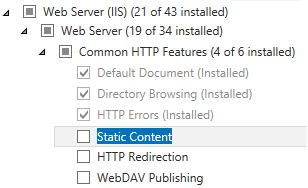
- When you find Static Content, select it and click Next
- In the Features step leave as is and click Next
- In the Confirmation window just verify what will be installed and click Install
- Once the installation finishes, go back to the browser and try to access Sitecore again
Before you say anything, press CTRL+R or a simple F5 🙂

Finally! Now, call your boss and tell them you FIXED EVERYTHING!
And never forget “Not so fast” 🙂
Thanks for reading and see you in my next post!