Azure · Bastion · Segurança
Access Virtual Machine with Bastion Without Connecting to Azure
I've discussed Azure Bastion in other posts here on the blog (here and here) and, for those who don't know, it's a Platform as a Service that provides secure RDP and SSH connectivity to protect your Azure virtual machines.
After deploying Bastion, you would need to be logged into the Azure Portal and then connect to the machine directly from your browser in a fully secure way.
Now, Azure Bastion allows users to connect without needing to access the Portal. Want to know how? Read the post.
Considerations
Before starting the explanation, it is worth noting that there are a few considerations:
- Currently, there is no support for shareable links for VNets peered across tenants.
- Currently, there is no support for Shareable Links in WAN Virtual.
- Shareable Links do not support connections to local VMs and VMSS outside Azure.
- The Standard SKU is required for this feature.
- Bastion supports only 50 requests, including creations and deletions, of shareable links at a time.
- Bastion supports only 500 shareable links per Bastion resource.
Prerequisites
There are also prerequisites that need to be met:
- Azure Bastion already deployed in your VNet
- Bastion must be configured on the Standard version
Enabling Shareable Link feature
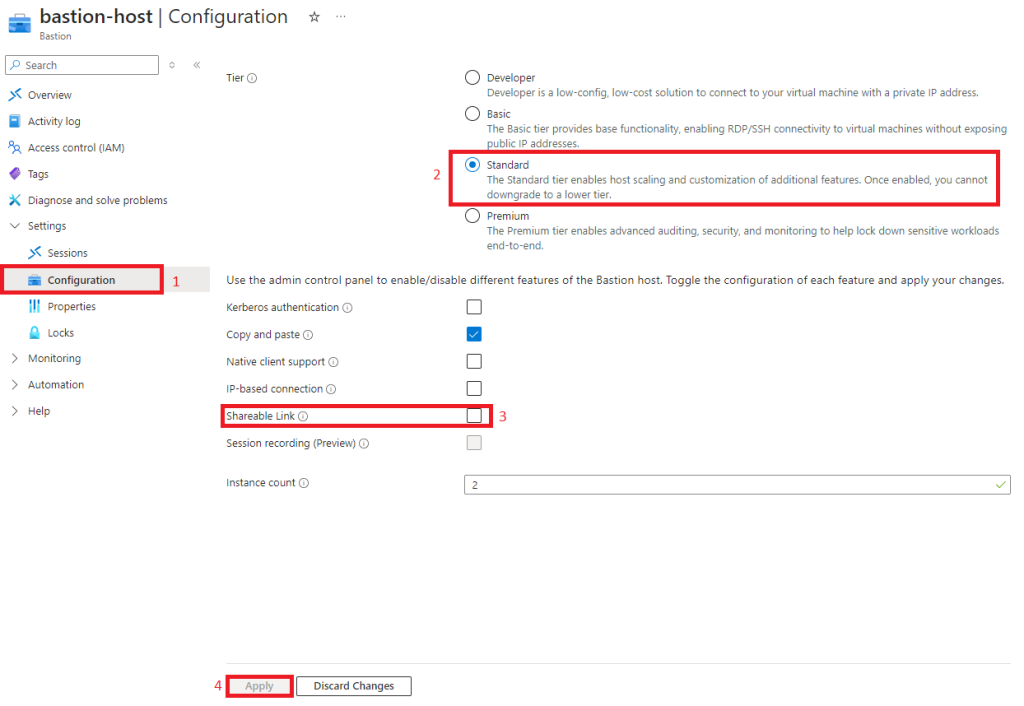
Sign in to Azure and go to Settings > Configuration.
Check if the Tier of your Bastion is set to Standard or Premium, then look for Shareable Link and enable the option, and finally Apply.
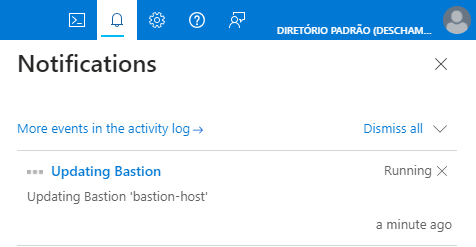
Wait for the Bastion to update in the notifications.
Create shareable links
Once you added Shareable Link, you will have an option in Settings called Shareable Links. If you don't see it, go to the Azure home page and return to your Bastion to refresh the menu.
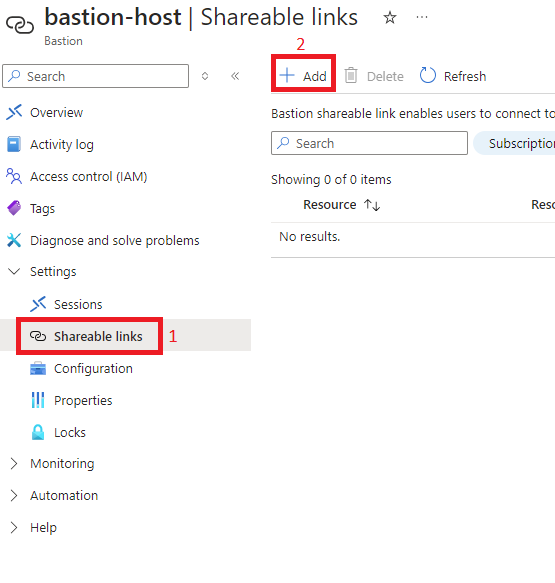
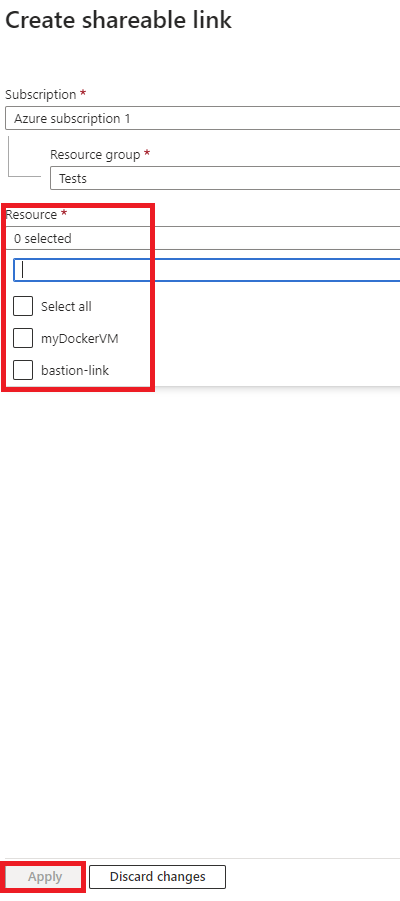
Select the Subscription, Resource Group, and, most importantly, the virtual machines that can be accessed via the shareable link, then click Apply.
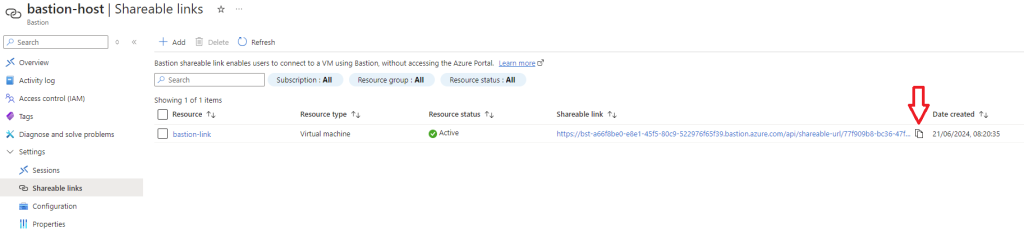
In a few seconds the link is generated and you can copy it by clicking the arrow button shown in the image, then share with whomever you want to access the VM without accessing the Azure portal.
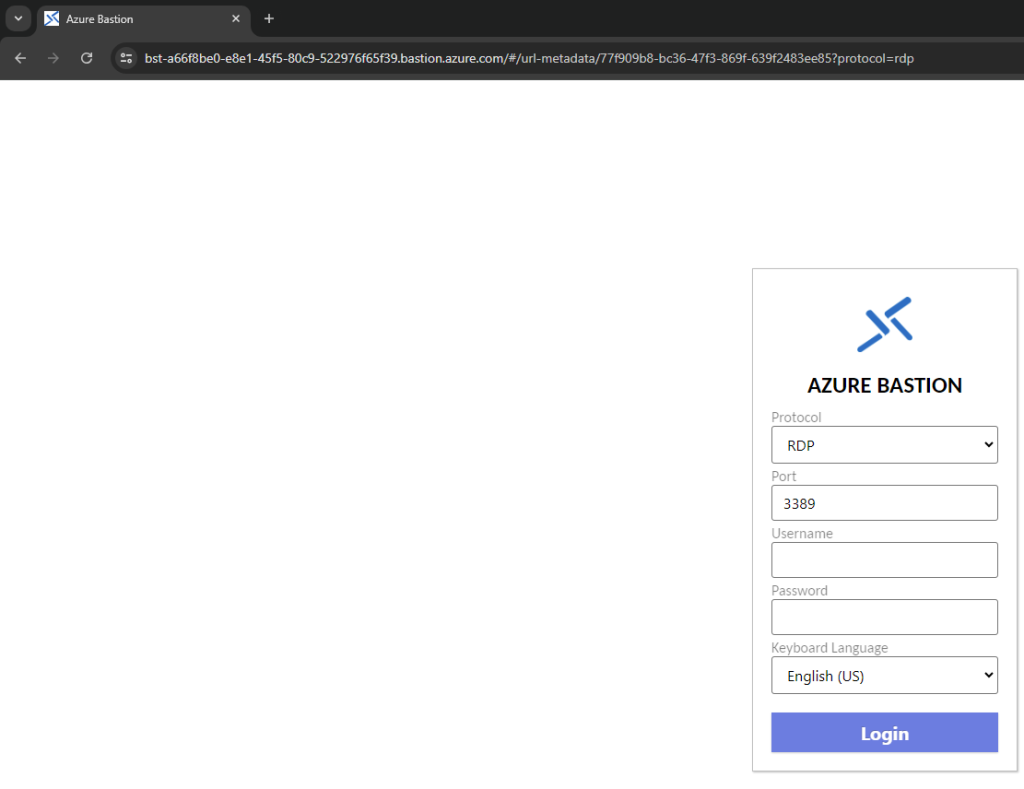
When opening the link, the person will see the following screen, where they need to provide a username and password to access the virtual machine, and click Login.
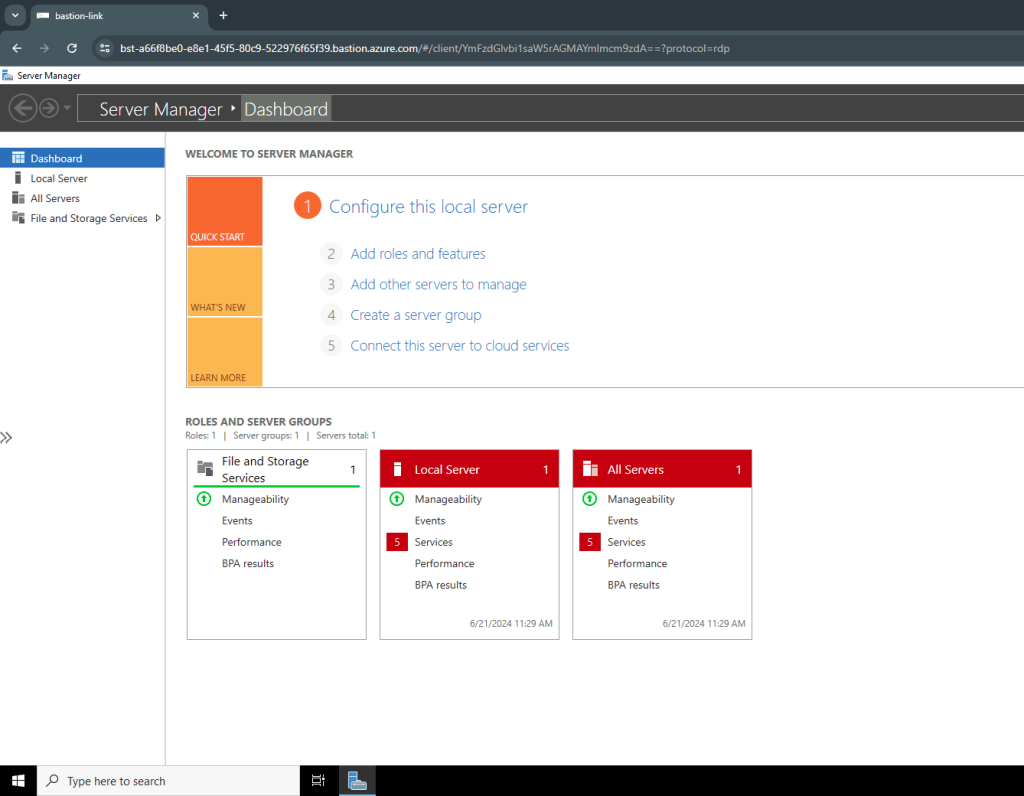
And voila, connected to the virtual machine via the shareable link, with no interaction with the Azure Portal.