
Azure · Certificados · Key Vault
Azure Key Vault – Error restoring a certificate
Recently I had to perform some experiments related to an Azure Application Gateway and use certificates that were in an Azure Key Vault.
In short, I needed to configure an Application Gateway in a different Subscription to run some migration tests of a client application.
To perform the test closest to the existing environment, I also decided to use the existing certificates that were in the Key Vault, and that's when I encountered the problem restoring the certificate in the new Key Vault.
I will show step by step what happened
Add a Listener to the Application Gateway
When adding a Listener to the Application Gateway, you can choose to upload a certificate or pick one directly from the Key Vault
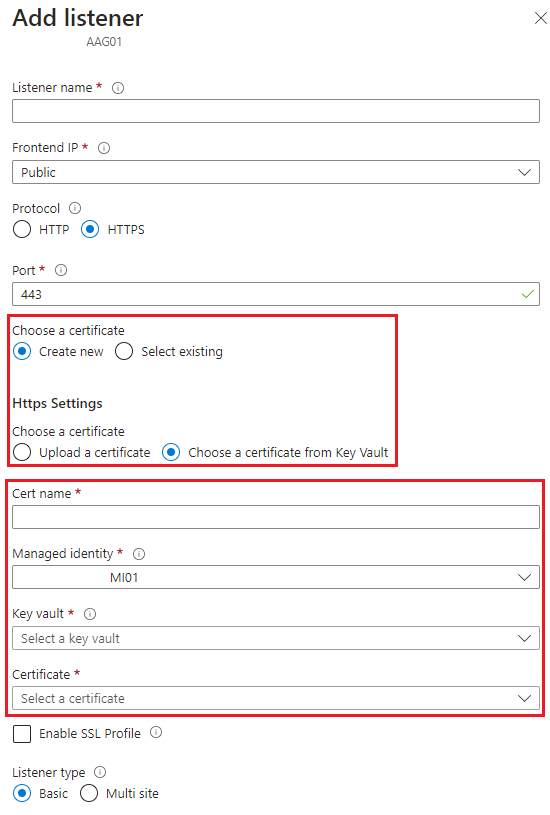
It was then that I noticed the certificate was not available in the Key Vault of the new Subscription
Backing it up and restoring it in the destination Key Vault
I thought, I’ll back up the Key Vault and restore it in the Key Vault of the new Subscription
Backup
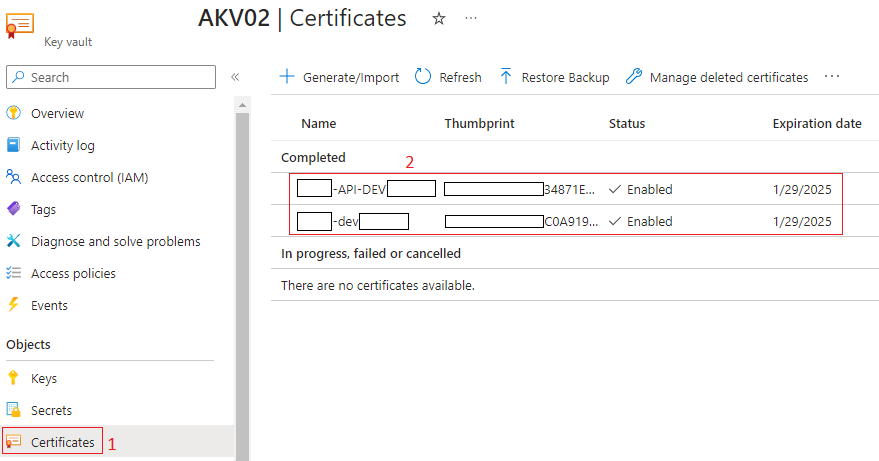
I went to the Key Vault in question, looked for Certificates, then clicked the first certificate that needed to be backed up
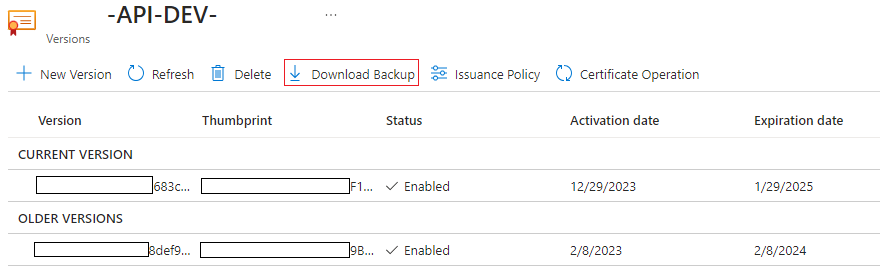
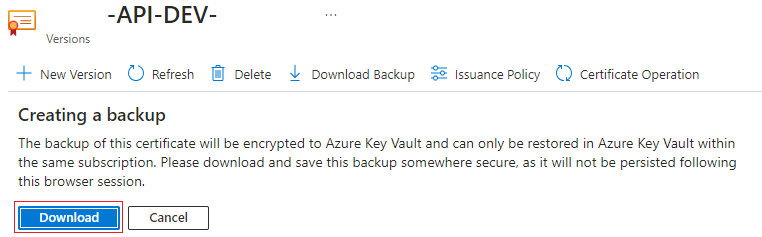
Then I selected Download Backup
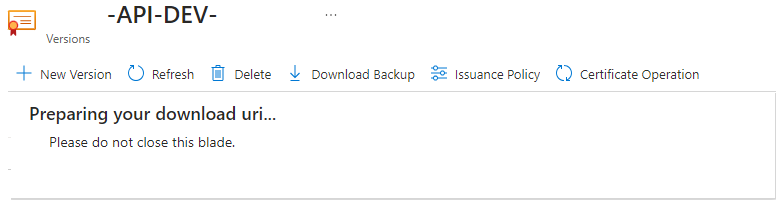
You will be prompted not to close that screen, and then to download the file pressed on the Download button
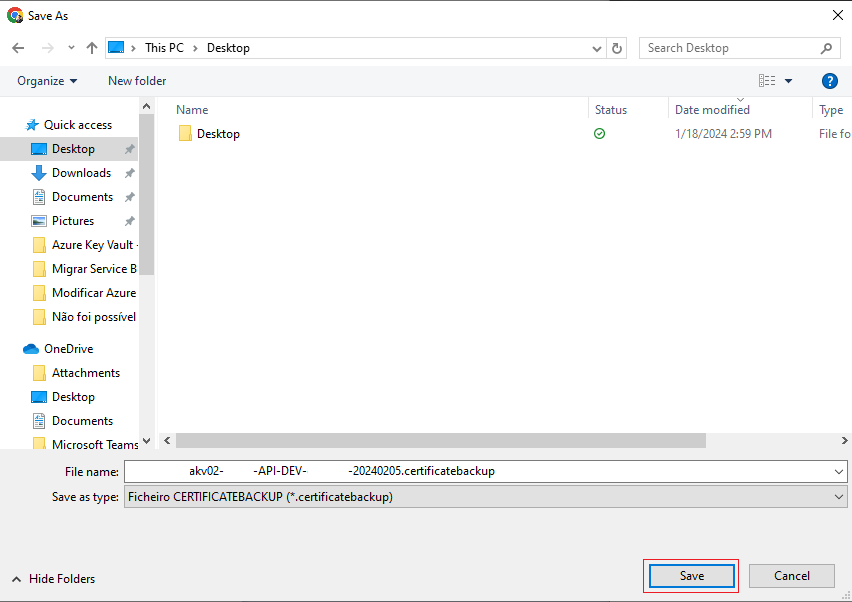
Choose a location to save the backup and press Save
Restore
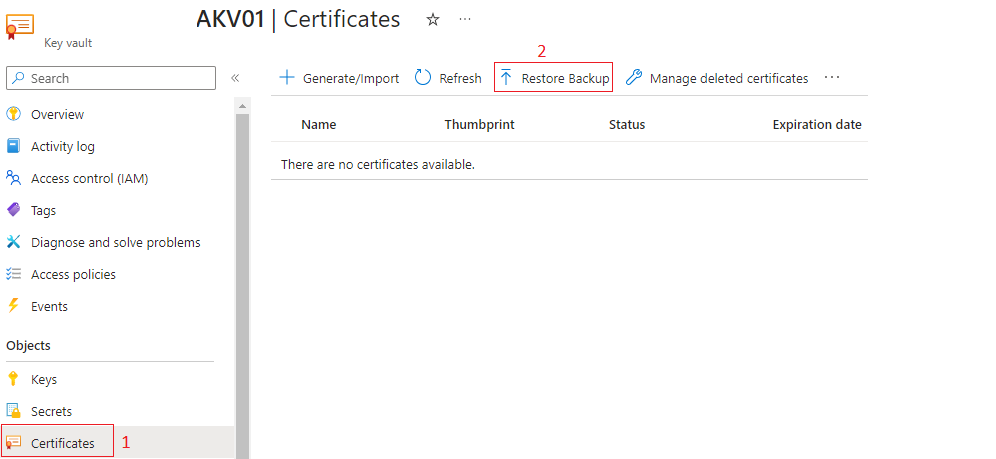
I went to the Key Vault in the other Subscription, again under Certificates and chose Restore Backup
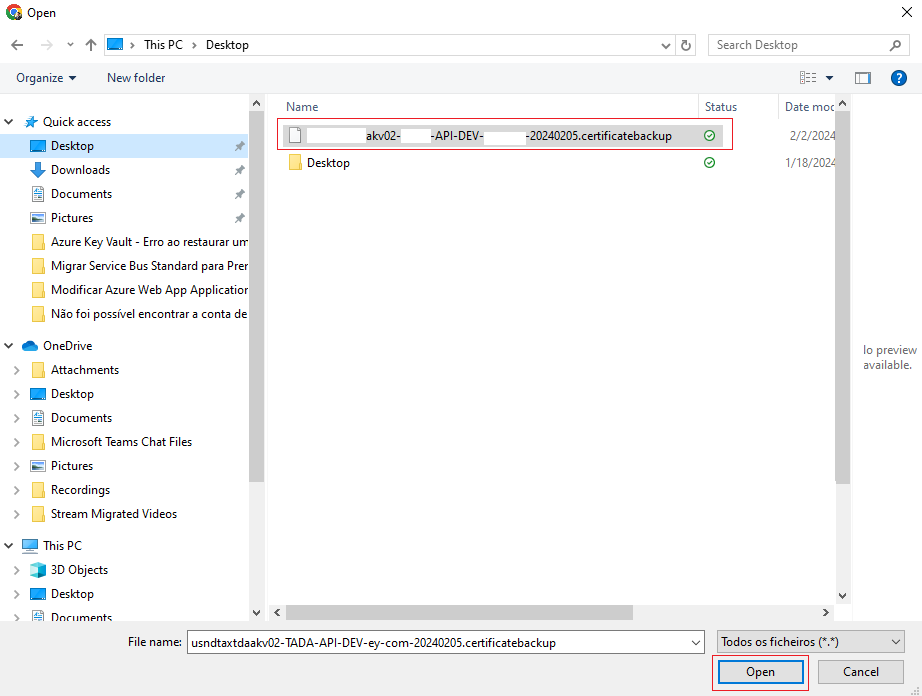
I navigated to the location where I saved the backup, selected it, and clicked Open
Error
That’s when I received the error

An error occurred while restoring the certificate
Upon opening the error, I had a clearer message about what happened
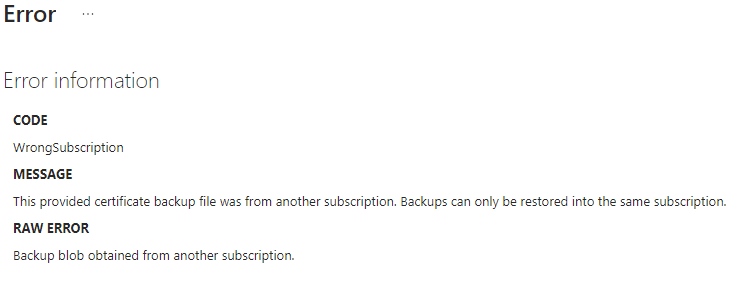
This provided certificate backup file was from another subscription. Backups can only be restored into the same subscription.
I had done this process a few times before, but apparently never across Subscriptions
So, what I learned here is that restoring a certificate backup to a Key Vault can only occur in another Key Vault that is within the same Subscription
Solution
In this case, there are two possible solutions
Solution 1
Ask the client for the PFX certificate and perform a certificate import
Go to your Azure Key Vault, Certificates and in Generate/Import
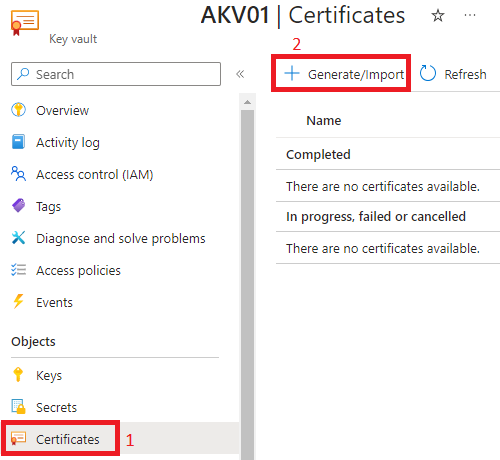
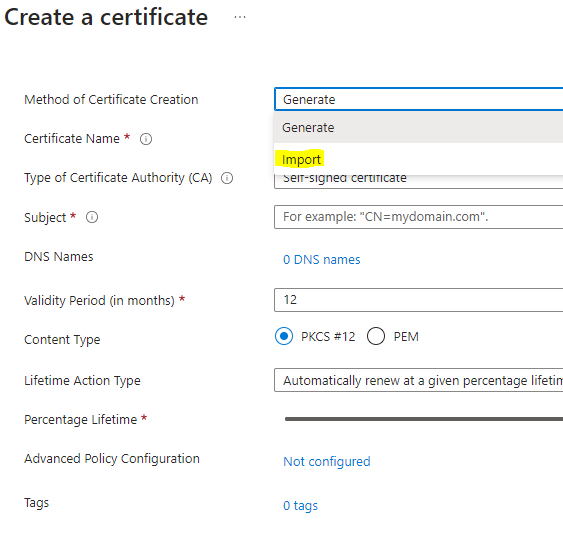
On the Create a certificate screen, choose in Method of Certificate Creation the Import option
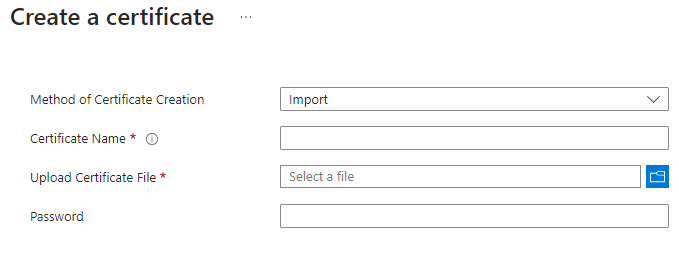
Then, provide the certificate information such as Certificate Name, upload the certificate, enter the PFX file password, and press Save to complete the process
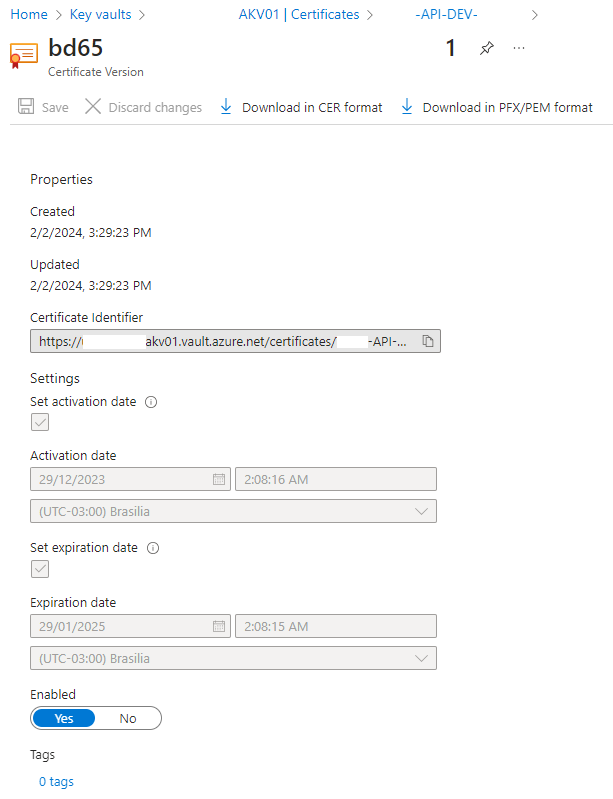
If everything goes well, the certificate details will be shown, quite similar to the example below
Solution 2
Download the PFX file from the existing certificate in the Key Vault and perform the certificate import
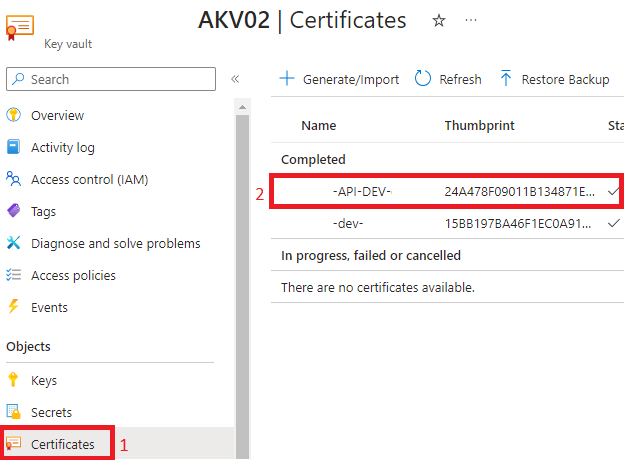
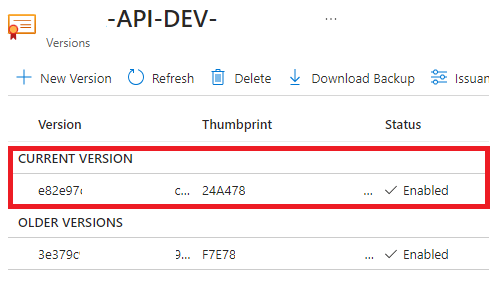
Go to the Key Vault where the certificate is currently stored, Certificates, choose the certificate you want to download and then click the option below Current Version
With the certificate open, click on Download in PFX/PEM format and then confirm the download and press Download
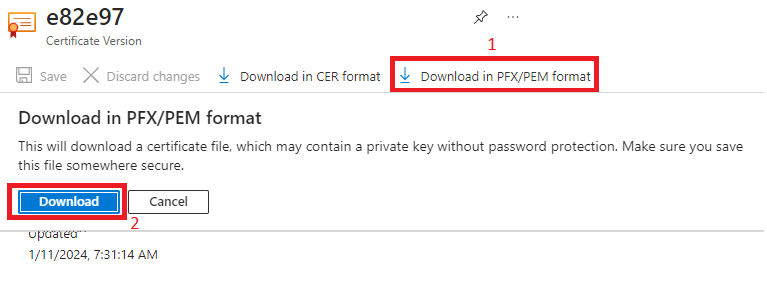
Choose where to save and press Save
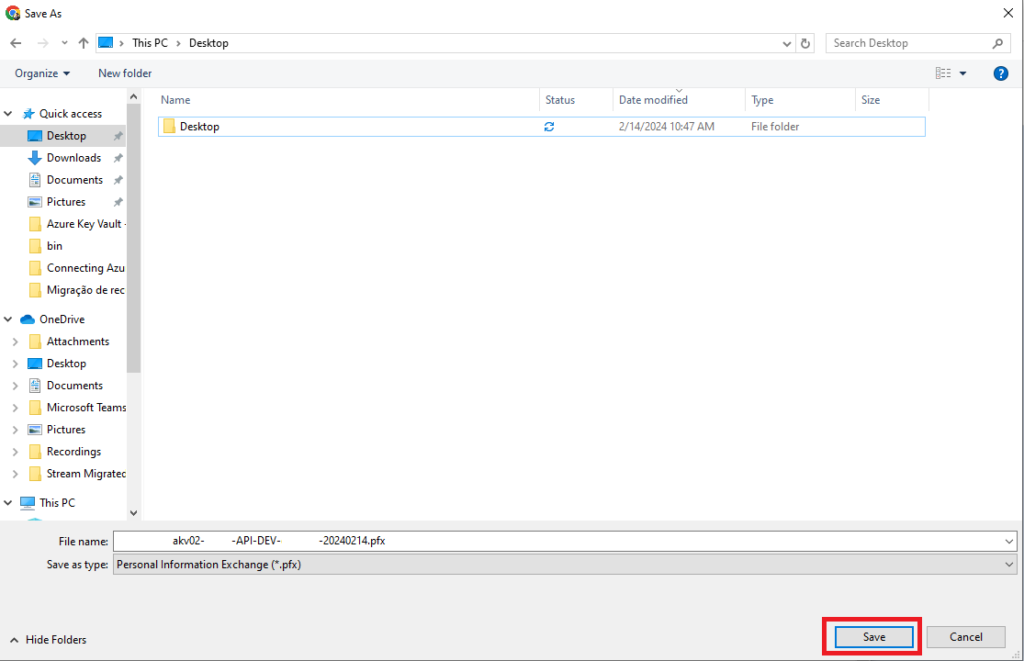
Next, go to the Key Vault in the other Subscription and repeat the path from Solution 1 to import the PFX file, but with an important note
When you export the certificate (from a Key Vault), the password field is left blank
In other words, when importing the PFX coming from a Key Vault export, you can leave the Password field blank as well
References:
- https://learn.microsoft.com/pt-br/azure/key-vault/certificates/how-to-export-certificate?tabs=azure-cli#export-stored-certificates
- https://learn.microsoft.com/pt-br/azure/key-vault/certificates/tutorial-import-certificate?tabs=azure-portal
- https://learn.microsoft.com/pt-br/azure/key-vault/certificates/how-to-export-certificate?tabs=azure-portal