
Azure · CosmosDB · Migração · PostgreSQL
Migration of resources between Subscriptions – CosmosDB for PostgreSQL Cluster
I was participating in a project that needed to migrate several resources from one Subscription to another, within the same Tenant.
The idea was to use the Azure Resource Mover so that the process would happen quickly and simply
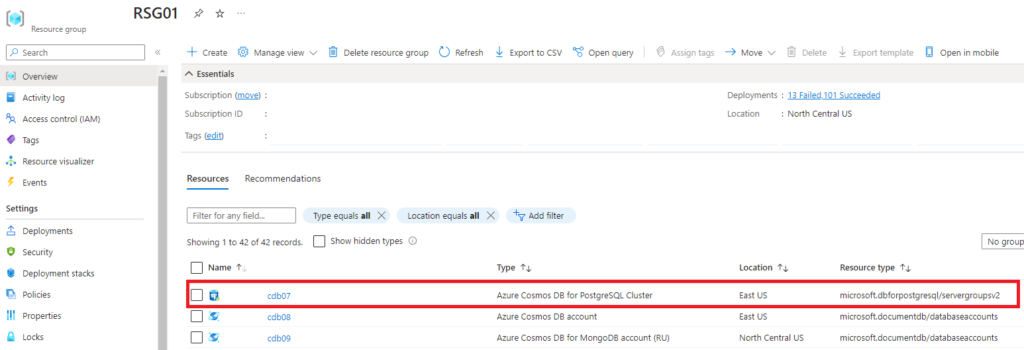
However, as you can see, CosmosDB for PostgreSQL Cluster is of the Resource Type microsoft.dbforpostgresql/servergroupsv2, which according to the Microsoft documentation is not supported for this type of operation
But still, I tried to do it with Azure Resource Mover, after all, I had to try, right?
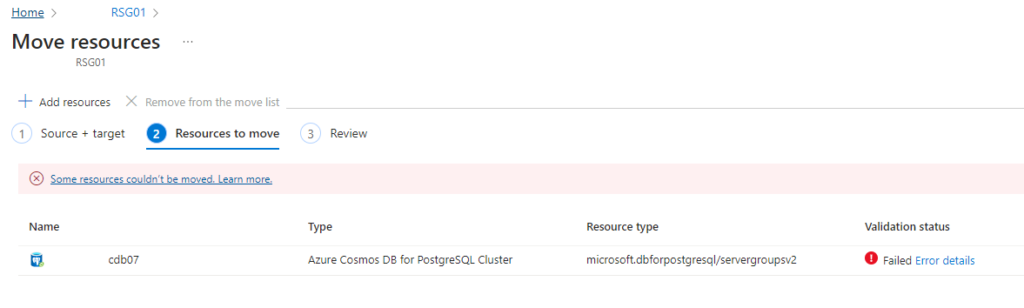
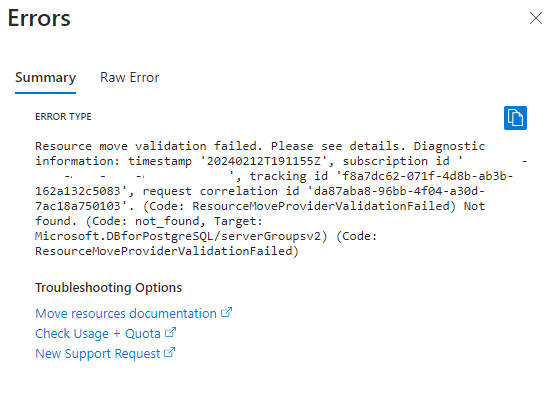
So, what needed to be done was a dump and restore of the data and it’s a fairly simple path, as long as you pay attention to this fact: PostgreSQL needs to be on the same version, both on the source and the destination.
For the next steps you will need the PostgreSQL utilities, and you don’t even need to install them, just download the zip directly from this site here
Verifying the PostgreSQL version
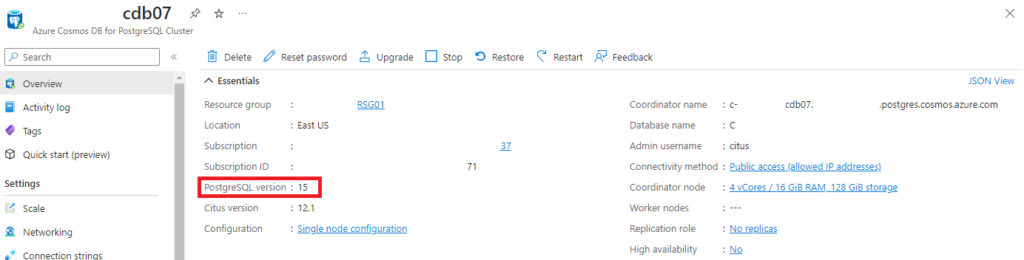
In the Azure Portal, you will search for your Azure CosmosDB for PostgreSQL Cluster and in the general information (Overview) you will find PostgreSQL version
If you already have the PostgreSQL executables, you can also do it directly from the command line
.\psql.exe --host [postgresql-host] --username [username] --dbname [database-name]

You will be prompted to enter the user password and, then, you will be running SQL commands inside the cluster

SELECT version();

So, in this case, PostgreSQL 15.5, and the destination server needs to be on the same version
To exit the SQL command line, type
\q
Perform dump (pg_dump)
We will need to perform a dump of the Schema where the tables are located and, also, of the data
Schema-only
Run the command below and then enter the password for the user
.\pg_dump.exe --host [postgresql-host] --username [username] --schema=[schema-name] --no-owner --schema-only --file=[output-file.sql] --format=plain -Fc [database-to-dump]

Wait until the command line returns and go to the folder, you should find the file you placed in the –file parameter

Data
Run the command below and then enter the password for the user
.\pg_dump.exe --host [postgresql-host] --username [username] --schema=[schema-name] --no-owner --data-only --file=[output-file.dump] --format=custom -Fc [database-to-dump]

Perform the restore (pg_restore)
Assuming you already have the CosmosDB for PostgreSQL Cluster in the destination Subscription, let’s perform the restore
Schema-only
The restoration should occur in this order, because the SQL file generated by the dump of the Schema-only will be responsible for creating the tables, as well as functions that exist in that schema.
Also, some errors are expected in this type of restoration, but just watch for the errors, as they may be trying to create something that already exists and that’s fine.
Run the command below and then enter the password for the user
.\pg_restore.exe --host [postgresql-host] --username [usuário] --dbname=[banco-de-dados] [nome-do-arquivo.sql]

And here some common errors, for example, trying to create the public schema, which already exists on the destination

In the end, the run provides you a summary of the errors and, in my case, there were 15, but they did not hinder the restore process

Data
Once the tables and other prerequisites have been created, we will now start restoring the data.
Run the command below and then enter the password for the user
.\pg_restore.exe --host [postgresql-host] --username [usuário] --dbname=[banco-de-dados] [nome-do-arquivo.dump]

Unlike the schema restore, data restoration should occur without errors, since the tables should be empty and will receive new data
Verifying the data
Connect via SQL query on the CosmosDB for PostgreSQL Cluster where the data was migrated
.\plsql.exe --host [postgresql-host] --username [usuário] --dbname [banco-de-dados]

Type the command below to list all tables from all schemas, in my case, those belonging to the public
\dt
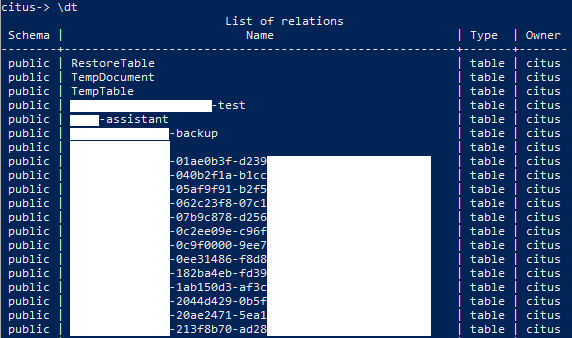
Choose one of the tables and type the following command
SELECT [COLUMN] FROM [SCHEMA].[TABLE];

Sources:
- https://learn.microsoft.com/pt-br/azure/azure-resource-manager/management/move-support-resources#microsoftdbforpostgresql
- https://learn.microsoft.com/pt-br/azure/resource-mover/overview
- https://docs.citusdata.com/en/v11.0/develop/migration_data_small.html
- https://www.postgresql.org/docs/7.1/app-pgdump.html