
Azure · Migração · Service Bus
Migrate Service Bus Standard to Premium
Until recently, the Azure Service Bus only had the Standard tier optimized for low-throughput environments and for developers.
The Premium Tier provides dedicated resources per namespace, guaranteeing predictable latency and higher throughput at a fixed price, being optimized for production environments and high throughput.
Today I’ll show how to migrate Azure Service Bus Standard to Premium using Powershell (it can also be done in the Azure Portal)
Before migrating, you need to know this
- No changes to the application are required, since the existing Connection String in the Standard tier will be created in the new Premium namespace
- If you already have a Service Bus Premium and want to use it for this migration, it must not have entities and must not have partitioning enabled
- All entities in the standard namespace are copied to the premium namespace during the migration
- Migration supports 1,000 entities per namespace in the premium tier
- To migrate a Basic tier to Premium, you must migrate it to the Standard tier first and then to Premium
- Role-Based Access Control (RBAC) is not migrated and must be added after the migration
Performing the migration with Powershell
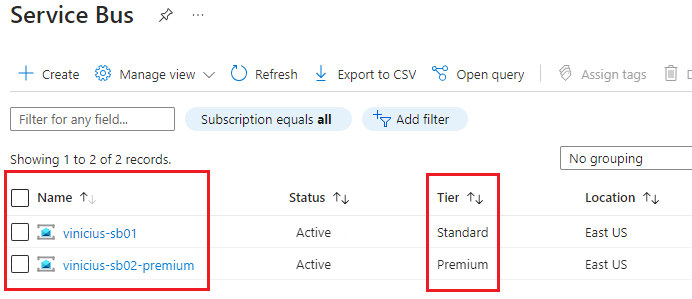
Before starting, the first step is to have two Azure Service Bus instances, the Standard and the Premium, noting that the Premium must be empty
Here I show the step-by-step to perform the migration, but there is also a script ready here in my GitHub repository
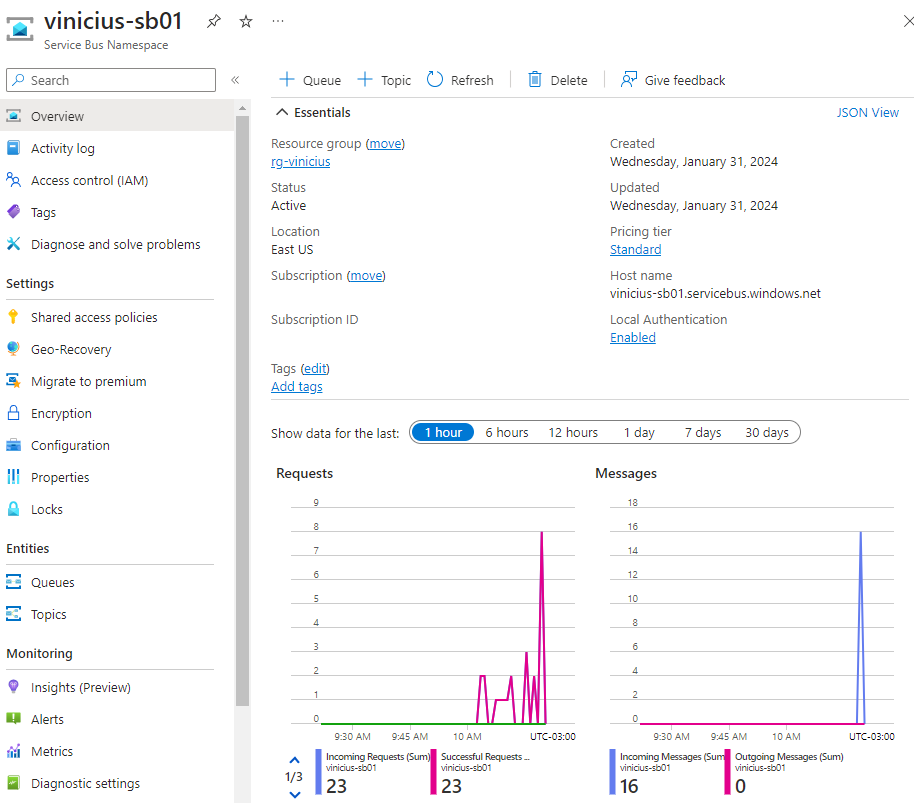
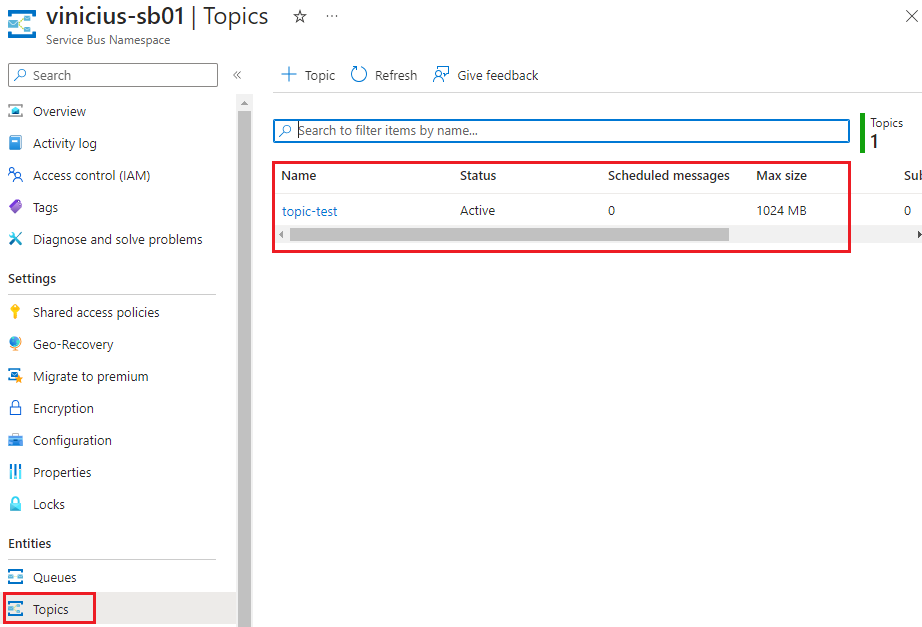
Let’s take a look at the settings of the Standard Service Bus
Service Bus Standard
Overview
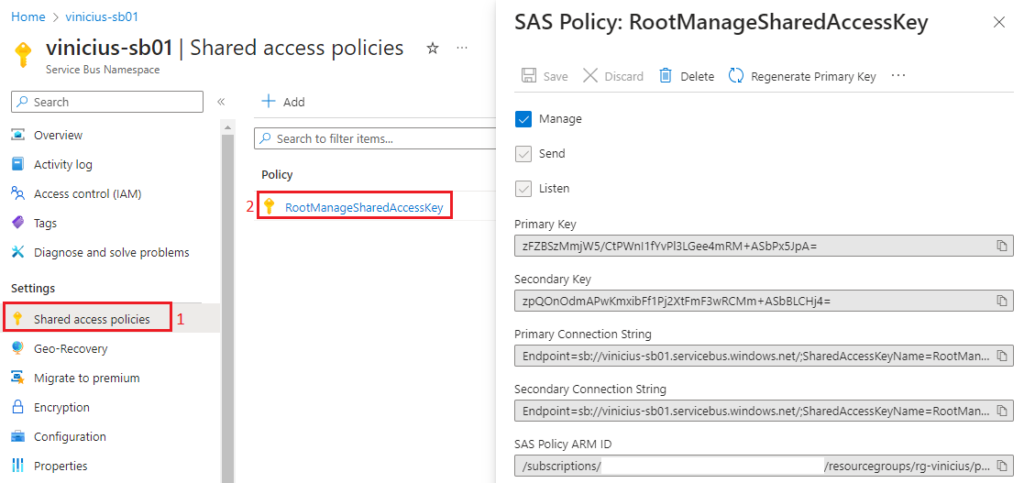
Shared access policies
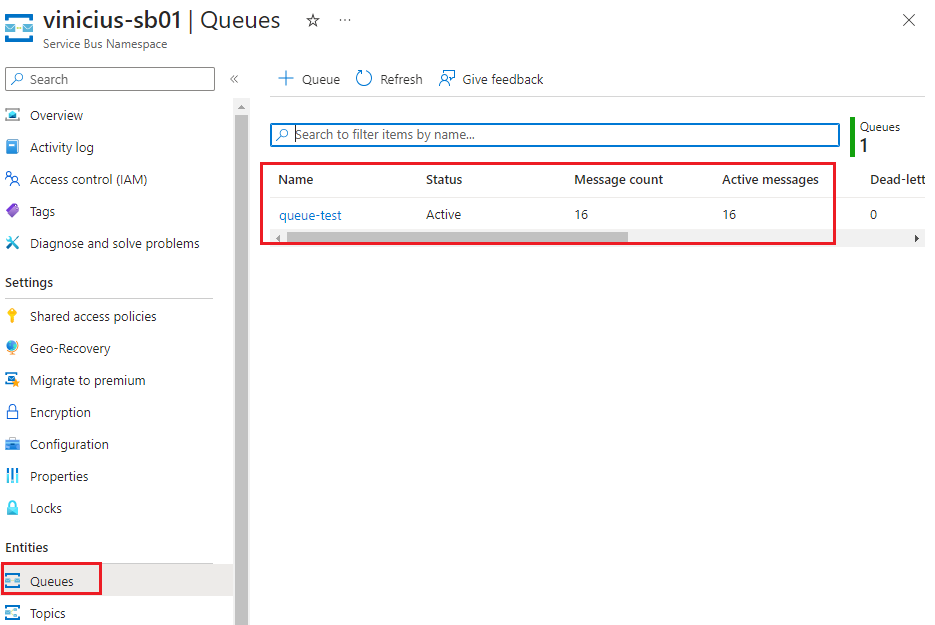
Queue
Topic
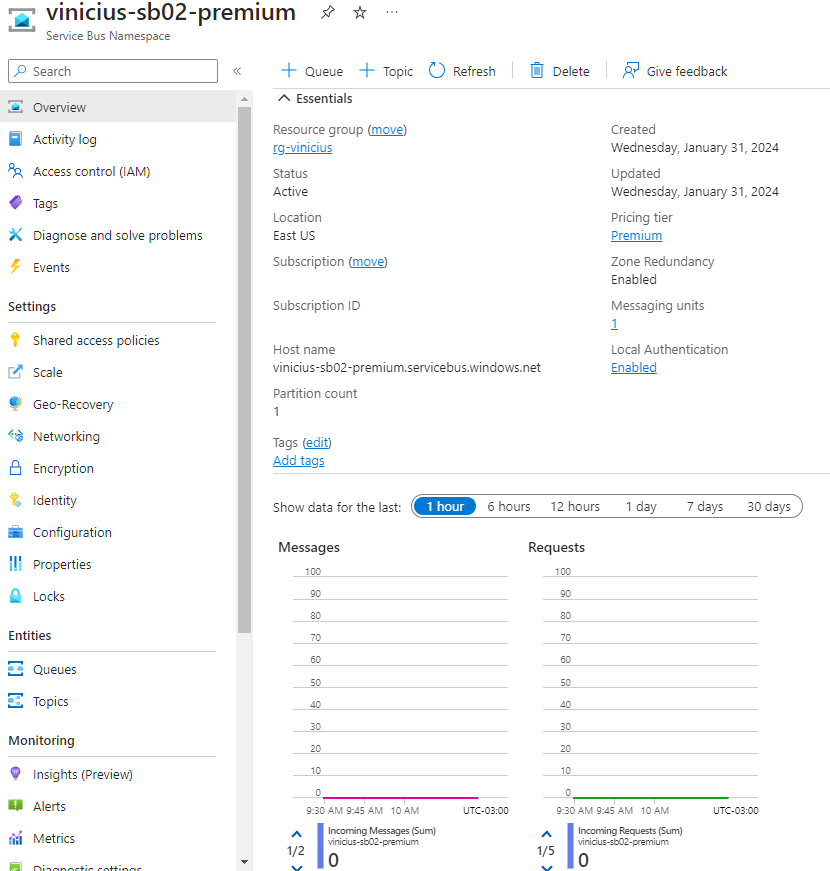
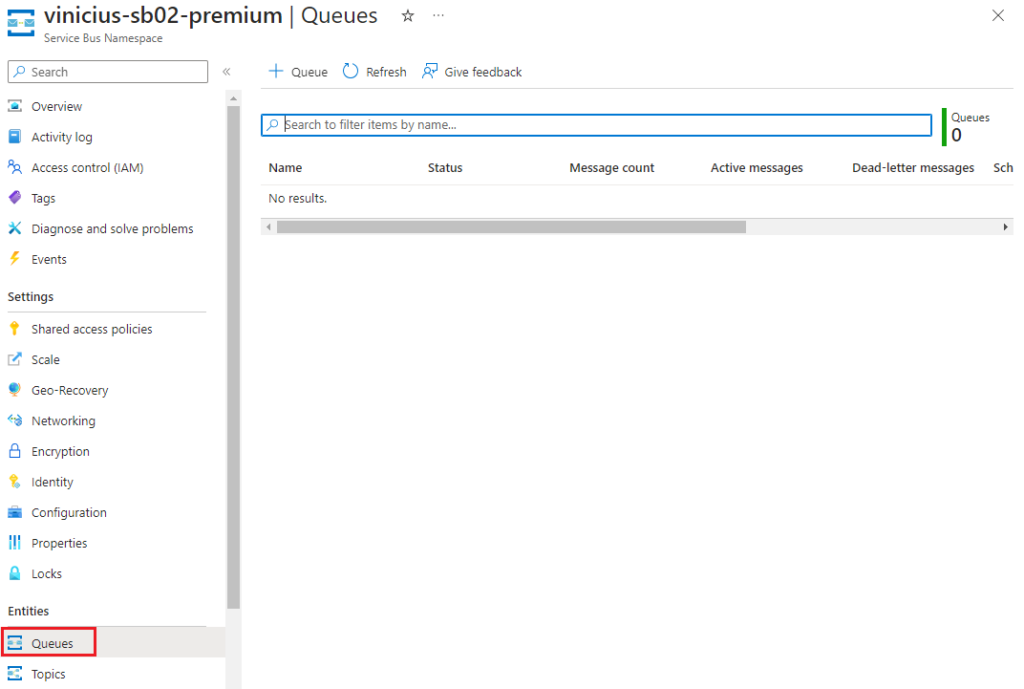
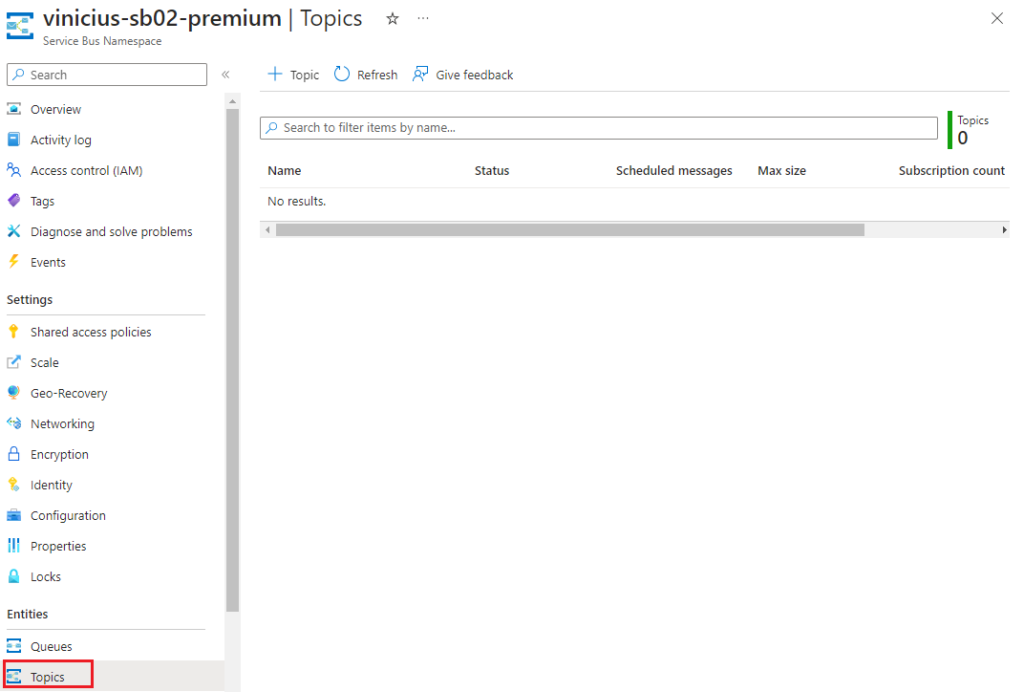
And now ensure the Service Bus Premium is empty
Service Bus Premium
Overview
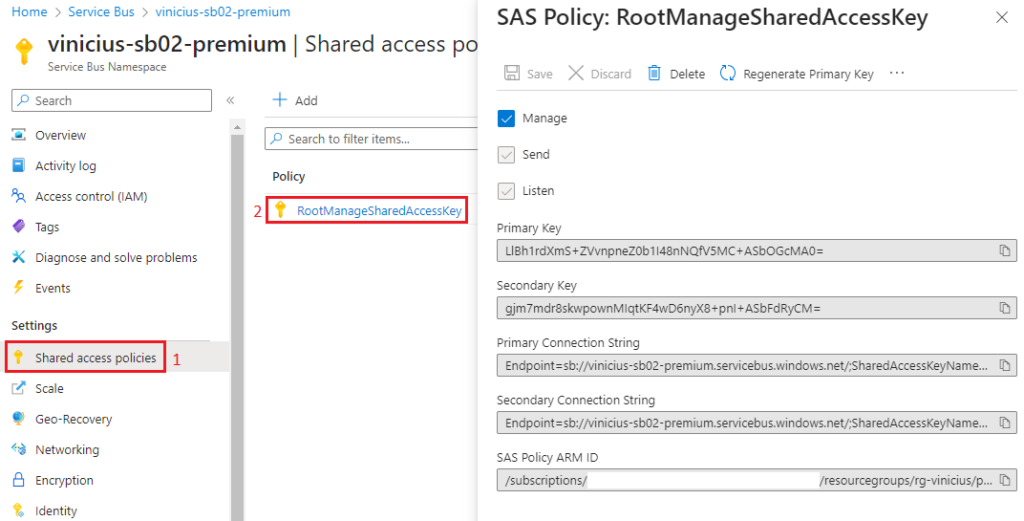
Shared access policies
Shared access policies are created automatically when a Azure Service Bus is created, whether Standard or Premium, so it’s fine to exist and won’t hinder the migration.
Want to know more about Shared Access Policies? Click here
Queue
Topic
Defining variables
Next, we’ll need the following information to define variables in our script
- Azure Service Bus Resource Group of the Standard
- Name of the Azure Service Bus Standard
- Resource ID of the Service Bus Premium, in the format below
- /subscriptions/[subscription-id]/resourceGroups/[resource-group]/providers/Microsoft.ServiceBus/namespaces/[Azure-Service-Bus-Premium-Name]_
- Domain Name Service Name post-migration
- It will be used to access the namespace Standard (old) after migration to drain queues and subscriptions
In my scenario, these are the variables:
$resourceGroupSourceAsb = "rg-vinicius"
$sourceServiceBus = "vinicius-sb01"
$targetServiceBus = "/subscriptions/073f055f-b619-5649-c913-bb1462def95f/resourceGroups/rg-vinicius/providers/Microsoft.ServiceBus/namespaces/vinicius-sb02-premium"
$dnsPostMigration = "acessarviniciussb01"

Executing the migration
Once the variables are defined, we’ll start the migration with the following command
az servicebus migration start --resource-group $resourceGroupSourceAsb --name $sourceServiceBus --target-namespace $targetServiceBus --post-migration-name $dnsPostMigration

And wait for the execution until you see the following output
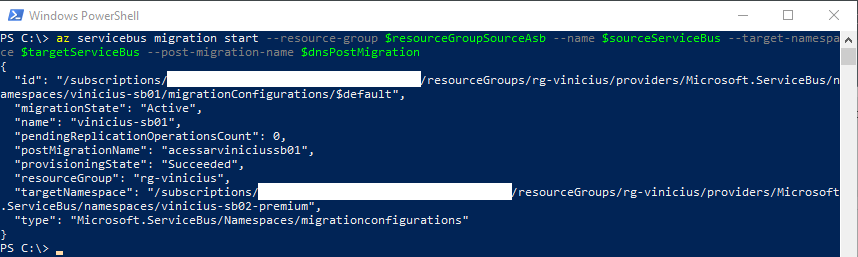
Then, confirm the migration to access the Service Bus Premium via its Connection String
az servicebus migration complete --resource-group $resourceGroupSourceAsb --name $sourceServiceBus

This command will not return any output, so now let’s check how the Service Bus looks in the Azure Portal
Verify in the Azure Portal
First, navigate to the Azure Service Bus Standard
Post-migration Service Bus Standard
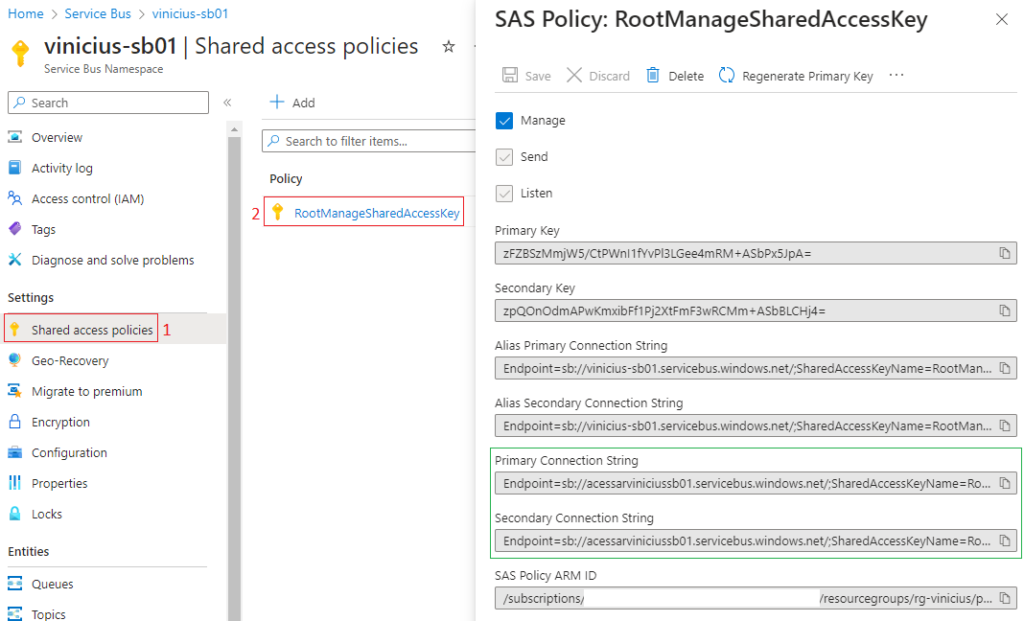
The Shared access policies were changed; as you can see, now the Primary and the Secondary Connection String show the value defined in the $dnsPostMigration variable (acessarviniciussb01)
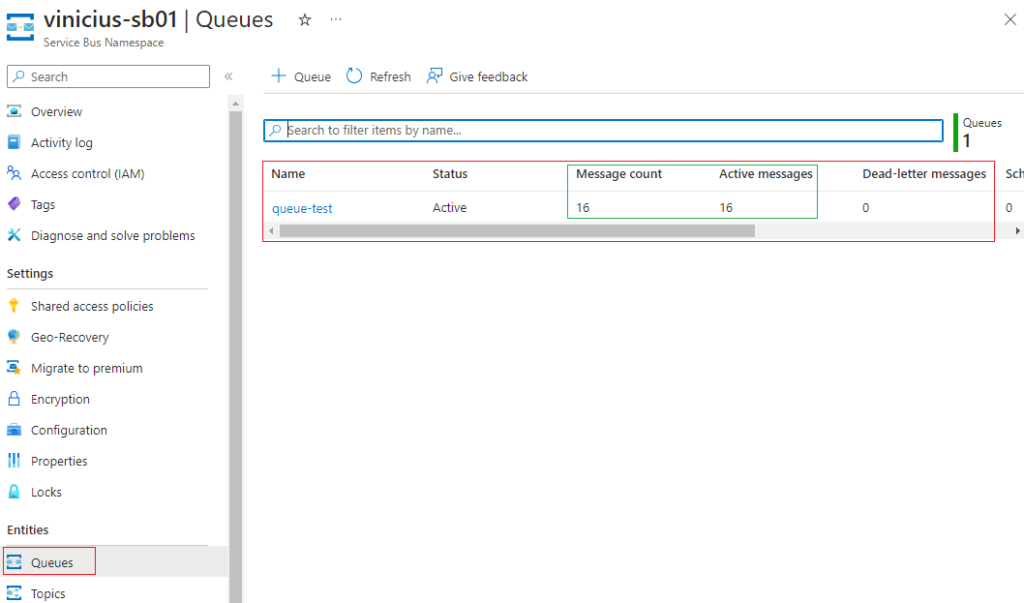
Looking at the queues, the Service Bus Standard still has the queue-test with 16 messages, and we need to clean it before deleting this Service Bus
Post-migration Service Bus Premium
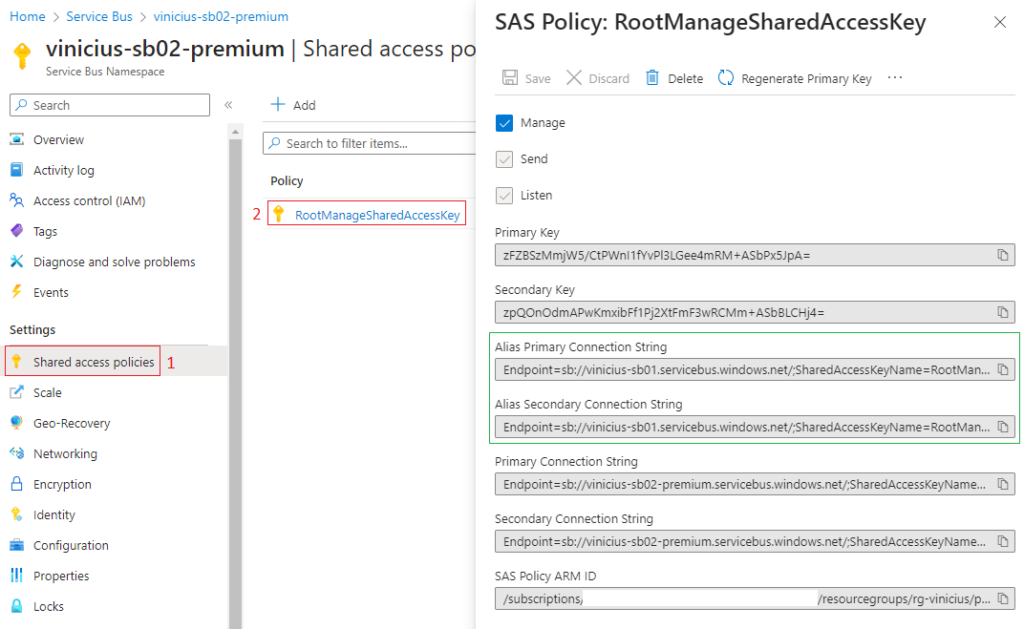
In the Shared access policies of the Service Bus Premium, we have an Alias Primary and Secondary Connection String using the name of the Standard Service Bus, and this is the explanation for the sentence “Before migrating, you need to know this”:
No changes to the application are required, because the existing Connection String in the Standard tier will be created in the new Premium namespace
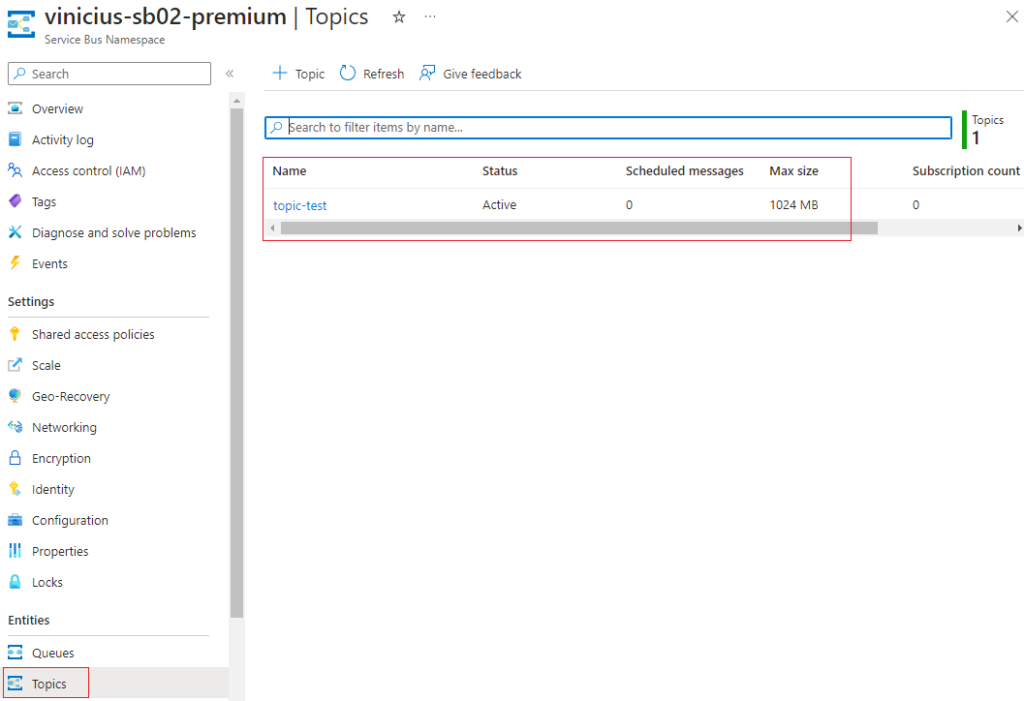
And also the topics-test in Topics
In addition, we now have the queue-test in Queues
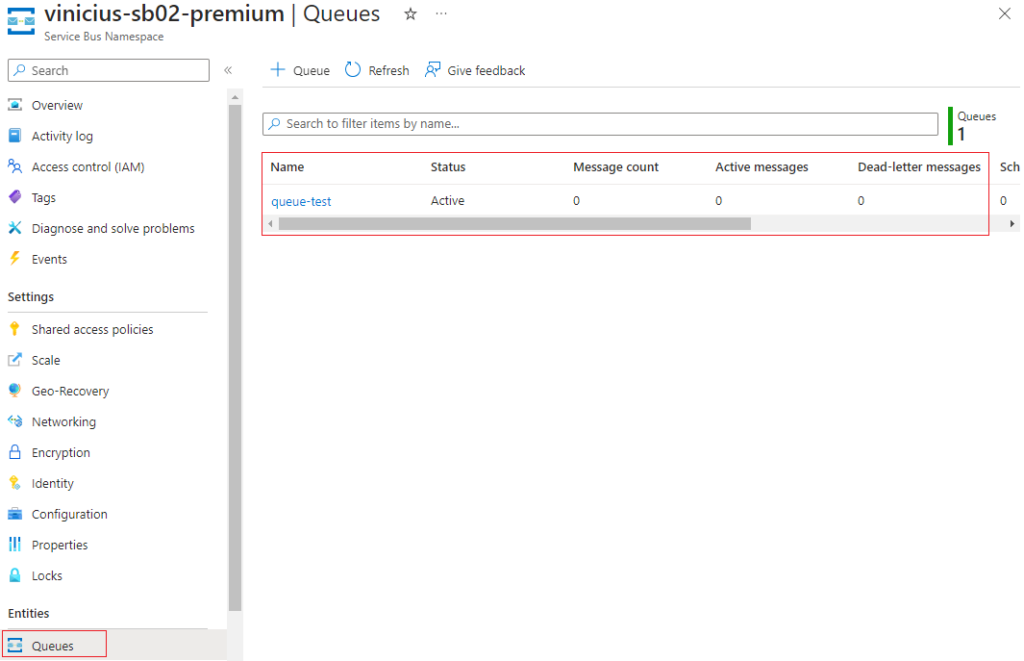
However, as you can see, the messages that existed in the Service Bus Standard were not migrated to the Premium, and Microsoft, in its documentation, explains this
The message data that were confirmed in the standard namespace are not copied from the standard namespace to the premium namespace.
The standard namespace may have some messages that were sent and confirmed while the migration was in progress. Manually drain these messages from the Standard namespace and resubmit them to the Premium namespace so that receivers can process them. To drain messages manually, use a console app or a script that drains the entities of the standard namespace using the post-migration DNS name you specified in the migration commands. Send these messages to the premium namespace so they can be processed by the receivers.
Sending Service Bus Standard messages to the Service Bus Premium
As of the time of writing this article, I couldn't find a way to do this via Powershell, only C# and Python.
So, I used the code I found here as an example to create the Python code.
You need to install the following Python modules and the Python code is available here on my GitHub
- pip install azure-servicebus
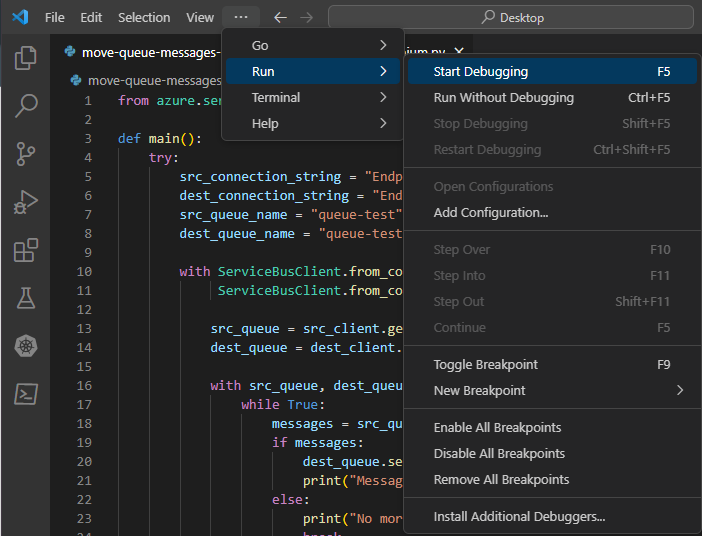
I ran this through Visual Studio Code, selecting Run > Start Debugging in case there are any errors, so I can get more details
And this was the output after execution
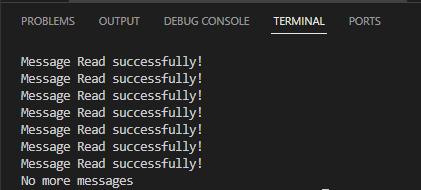
Let’s check the Azure Portal to see if the Service Bus Premium now has messages in the queue
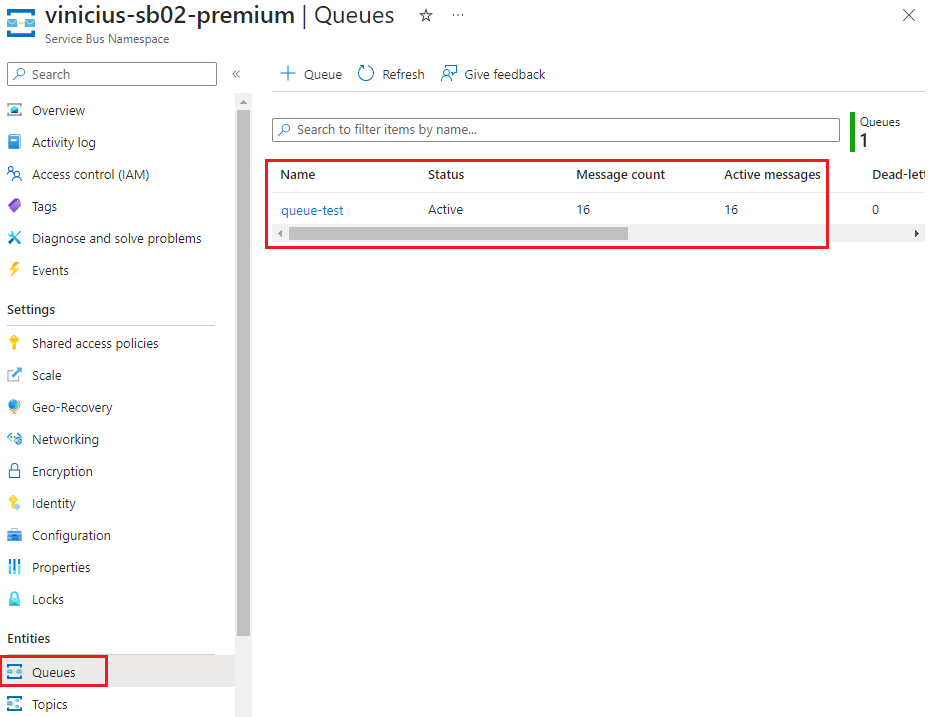
Now that the migration has completed, the messages have been transferred to the Service Bus Premium, so you can remove the Service Bus Standard
References
- https://renicius-pagotto.medium.com/azure-service-bus-entendendo-seu-funcionamento-parte-1-52ab641a4d00
- https://learn.microsoft.com/pt-br/azure/service-bus-messaging/service-bus-migrate-standard-premium
- https://learn.microsoft.com/pt-br/azure/service-bus-messaging/service-bus-migrate-standard-premium#migration-steps
- https://learn.microsoft.com/pt-br/azure/service-bus-messaging/service-bus-authentication-and-authorization